I’ve been using the ScreenZen Halo for over 30 days. It’s a $49 Bluetooth device that automatically blocks distracting apps when you’re within a certain range of it.
In this review, I’ll walk you through how it works, what the app can do, and whether the Halo is actually worth buying.
In this post
What is the ScreenZen Halo?
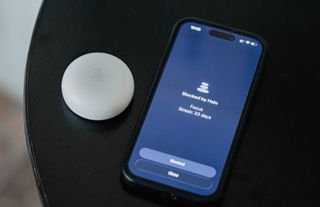
The Halo is a small Bluetooth device that blocks apps within a certain radius around it.
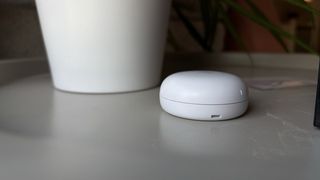
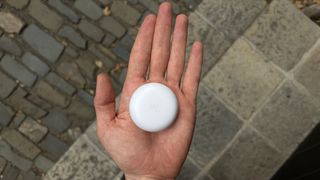
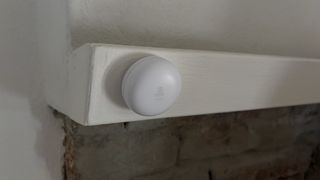
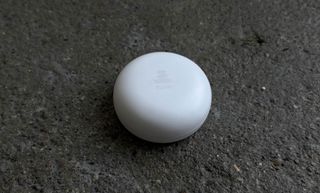
It looks like a small white pebble that fits in the palm of a hand.
It doesn’t have buttons or a charging port. It uses two small replaceable batteries for power, which, according to the brand, you’ll only need to replace every couple of years.
It looks great on a nightstand. But there’s a magnet built into the device, if you’d rather have it on your fridge. Or you can use the stick-on included in the box to attach it to a wall or beneath a desk.
The ScreenZen app (iOS | Android) is free to use. All you’re paying for is the physical device, which costs $49 and can be used with unlimited devices. (10% off with coupon code WHATIFIDIDNT)
The Halo is currently only available in the United States and works on iPhone and Android, on both phones and tablets.
How It Works
The Halo uses Bluetooth as well as your phone’s motion sensors to sense whether you’re using your phone inside or outside the radius.
Once you set up your device in the ScreenZen app, you’ll be able to choose which apps to block or allow, how far you want the Halo to work, and when you want it to be active or not.
The Halo is less about restricting yourself and more about designing a healthier lifestyle around a particular space. You place it somewhere, forget about it, and enjoy better habits.
One Halo works with multiple phones so you can connect your whole family and all of your devices—including tablets—to it.
Each user can choose their own settings, such as what to block and when.
However, the owner of the device (you) can choose to lock settings for everyone who uses the device using a passcode. This is great for parents wanting to prevent their children from changing their own settings.
Quick Specs:
-
Price: $49
-
Compatibility: iOS and Android
-
Shipping: United States
-
Technology: Bluetooth Low Energy (BLE)
-
Range: Up to 50 ft
-
Battery: 2x half-AA replaceable
Halo vs. NFC Tags: Which One Do You Need?
The main difference is in how they work.
With an NFC tag like Brick or Unpluq, you tap your phone on the device to activate blocking. The apps stay blocked wherever you are until you tap the device again.
With the Halo, there’s no tapping. It just sits there and recognizes whether or not you’re within its radius. As soon as you walk away from the zone, the apps unlock automatically.
So if your goal is to stop scrolling your phone in a specific place, like your bedroom or your office, the Halo is the better tool.
But if you find yourself scrolling at the bus stop, at the grocery store, at work, and at home, and you want to put an end to it all, an NFC tag or a dumb phone is a better fit.
Key Features
Block types
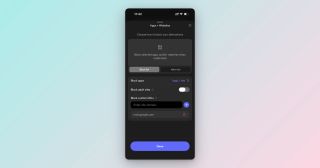
In the ScreenZen app, you can create both block and allow lists.
An allow list is like saying: “Block all websites except for these.”
Most of you will use block lists, but if you’re setting this up for an elderly person or one of your children, the allow list might be a helpful feature to consider.
You can block apps as well as websites. There’s also a toggle to block adult content. This works across all browsers.
Range
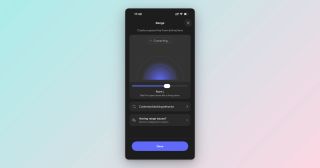
You can choose how far you want your Halo to block distracting apps and websites.
Maybe you only want to block Instagram in your bedroom, so you don’t doomscroll in bed. In this case, you’d set a small radius.
But if you wanted your entire home or office to be social media-free, then you could set a wider radius, the maximum range being 50 feet.
Blocking Behavior
You can use the Halo to block apps within its radius (default). But you can also do the opposite: block apps only when you leave the radius.
In other words, you could decide to only allow email or YouTube when you are near the Halo. Otherwise, they would be blocked.
You can also decide what happens when the Bluetooth is off:
- Continue blocking: Keeps the current blocking state.
- Start blocking: Turning off Bluetooth activates blocking.
- Stop blocking: Turning off Bluetooth deactivates blocking.
For most people, I’d recommend using “continue blocking” so you’re not tempted to turn Bluetooth on or off to access a particular app.
Schedules
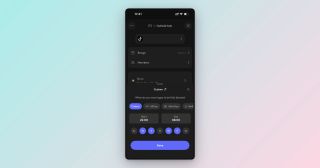
Schedules allow you to only activate the Halo on certain days, and at certain times of the day.
For example, you may want to allow Instagram in your room during the day, but not past 9 PM. That is something you can set up in the app.
ScreenZen gives you a few sensible presets, like:
- Workday (Mo-Fri, 9 AM to 5 PM)
- Bedtime (10 PM to 7 AM)
- Lunchtime (12 PM to 1 PM)
Otherwise, you can set a custom schedule and choose the days and hours you want the blocking to be active.
There’s also the option to set breaks.
Breaks are the opposite of a schedule. Instead of saying “I want to block apps from 10 PM to 7 AM,” you choose a time when you can access those apps; they’ll be blocked the rest of the time.
Multiple People, One Device
One Halo can be used by several people.
So both my partner and I can use the same device with different settings. She may block Facebook and Pinterest on her phone, while I block email and X on mine. She may have a wider radius and a different schedule than I do.
Once you set up your account in the ScreenZen app, you’ll be able to invite and add members to your account, essentially connecting them to the same device.
Locking Settings to Prevent Changes
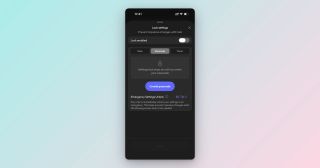
There’s an option in the app to lock the app’s settings. Once locked, you cannot change schedules, apps, and websites within a block list or radius.
This prevents anyone using the Halo (this includes you) from removing barriers when their willpower runs low.
If you’ve ever used a screen time app or NFC app blocker, you know how quickly your mind can go from “let’s focus” to “let me quickly check if someone has messaged me.”
You can choose what needs to happen before settings can be unlocked:
- Halo. The settings remain locked until you step outside of your Halo’s range.
- Passcode. You create a passcode to lock. Use the passcode again to unlock.
- Timer. Set a timer from anywhere between 15 seconds and 3 hours. Settings unlock when the timer runs out.
The ‘passcode’ option is a great feature for parents. Kids won’t be able to override the settings you’ve set for them in the ScreenZen app unless they know the passcode you’ve set.
Without this, it would be easy for them to unlock blocked apps or deactivate a schedule.
The ‘timer’ is great if you’re trying to get some work done and want to force yourself to focus for 1-2 hours.
Preventing uninstalls and tampering
You can stop yourself, or your kids, from removing ScreenZen by going to Options > Lock ScreenZen’s Settings > Prevent App Uninstall.
And as of iOS 26.4, you can use your Apple Screen Time passcode to lock ScreenZen’s screen time access, so it can’t be switched off in your phone settings either.
Emergency unlocks
What happens if you forget your passcode or lose the Halo after setting the blocking behavior to “Block outside radius”?
Use emergency unlocks.
Some apps, like Bloom or Brick, limit the number of emergency unlocks you get per month or per device.
Halo has a different system. When locking settings, you can choose your price for using an emergency unlock, from $5 to $40. That creates stakes and leverages loss aversion psychology to make sure you don’t unlock the Halo unless you absolutely need to.
There’s an option to set the fee to $0. However, this opens the door to unjustified cheating, so I personally do not use it.
One thing to know: emergency unlocks only come into play if you’ve locked your settings. They’re a fallback for when you can’t unlock the normal way, say you forgot your passcode or stepped away from the Halo. There’s no cap on how many you can use; the fee is the only thing standing in your way.
My Experience Using the Halo
I’ve enjoyed using the Halo. It sits on my nightstand. I’m using it to block Instagram and TikTok in my bedroom.
There have been a few times when I lay in bed in the evening and pulled out my phone to scroll, just to be reminded by the Halo of my intentions.
Sometimes, I get up and walk over to the living room.
Sometimes, I just put my phone away and pick up my Kindle instead.
This creates a nice separation between the bedroom and the rest of the house. It’s become a Zen place where I just don’t scroll anymore.
Next, I want to experiment with placing another Halo at work, so I’m forced to get up and take a break from my desk every time I try to access a distracting app.
Pros and Cons
✅ Location-based approach: Most dumb phones or NFC app blockers focus on what to block and when. The Halo introduces a new dimension: the where. I can see this approach being more sustainable (and therefore effective) than trying to resist temptations everywhere, all the time.
✅ Unlimited connections: One Halo can be used by several people at the same time, each with their own settings. You don’t need to buy a separate device for your partner or your kids.
✅ Minimalist design: ScreenZen really nailed the aesthetics of Halo. It is beautifully designed, small, and looks fantastic on a bedside table, TV stand, or desk.
✅ No subscription: You pay $49 once and that’s it. No monthly fees creeping in later. For a device you’re going to leave on your nightstand for years, that matters.
✅ Battery life: The device consumes very little energy. It uses two small batteries that, according to the company, will last you a couple of years before needing to be replaced.
✅ Built by ScreenZen: The Halo is built on top of ScreenZen, an app with over 70,000 reviews across the App Store and Google Play, averaging 4.8 and 4.9 stars. The infrastructure is already there, which means better support and a product that will keep improving over time.
❌ Location delay (solved): When I first set up the Halo, I noticed a slight delay stepping in and out of the radius, so apps didn’t lock or unlock the moment I left my bedroom. Since then, ScreenZen has fixed it. The location detection is now close to instant, and the only time I still notice any lag is when I’m hanging out right at the edge of the Halo’s radius.
❌ US shipping only: For now, the Halo only ships within the United States. If you’re outside the US, you’ll have to wait until ScreenZen expands, or find someone to forward it to you. Hopefully wider availability is on the roadmap.
❌ Less restrictive than other blockers: The flip side of location-based blocking is that you can always walk away from it. The Halo is built to shape your habits around a space. That’s the device’s strength. But if you’re relying on the Halo to keep a child off social media, keep in mind they can take their phone to another room, and the apps unlock.
Bottom Line: Is the Halo Worth It?
Yes. At $49 and no ongoing subscription, the Halo is a fantastic purchase for anyone struggling with phone overuse, especially if that overuse is tied to a specific place, like a bedroom or office.
I can see a lot of people benefiting from using the Halo, individuals and businesses alike. For example:
- Parents trying to keep their kids off social media at home
- Professionals and creatives who want to remove distractions from their office
- Small business owners who want their employees off Facebook, etc. while sitting at their desks
- Schools that need to keep children off their phones in classrooms
So if you’ve tried other screen time solutions and they haven’t worked for you, I recommend giving the Halo a go.
Shipping is free, and you have 30 days to return the device if you find out it’s not for you.
Get your Halo today
The Halo is exclusively available at screenzen.co. Get yours today and save 10% with promo code WHATIFIDIDNT.
Let’s do this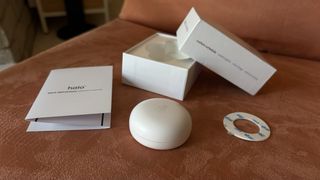
Frequently Asked Questions
What apps does the Halo block?
Whatever you tell it to. Inside the ScreenZen app you pick the apps and websites you want out of reach, usually the ones that eat your time like Instagram, Email, TikTok, YouTube, or the news. You can also block websites.
Does the Halo block apps all day or only at certain times?
That’s up to you. You can create schedules that only kick in at bedtime, during work hours, or on certain days. Or, you can have it block your chosen apps around the clock.
Can I use the Halo with multiple phones or devices?
Yes. One Halo covers everyone in range, on iPhone, Android, phones and tablets alike, with no limit on how many. That makes it handy for a whole family or a couple sharing a room.
Can I get around the Halo by turning off Bluetooth?
Not easily, which is rather the point. By default, if you switch Bluetooth off while you’re inside the zone, your apps stay blocked. You can also lock the settings and stop the app from being deleted, which closes the usual loopholes.
How far can the Halo block apps?
You choose the size of the zone, up to about 50 feet.
Is the Halo good for stopping bedtime scrolling?
That’s exactly what it was made for, and it’s how I use mine. You set it on the nightstand, and when you walk into the bedroom your usual scroll apps simply aren’t there. There are no timers to fiddle with and no willpower needed, which is what makes it stick.
ScreenZen Halo vs Brick: which should I get?
They solve the problem in different ways. With Brick, you tap your phone on a little tag to switch blocking on, and it stays on wherever you go until you tap again, so it shines when you’re out and about.
The Halo guards one place, like your bedroom or desk, and blocks automatically whenever you’re there.
If your trouble spot is a specific room, go with the Halo. If the scrolling follows you everywhere, Brick or a dumb phone may suit you better. You can also use both (my preference).
How much does the ScreenZen Halo cost? Is there a subscription?
The Halo is a one-time $49, with no subscription and no monthly fees. The ScreenZen app itself is free. It runs on small replaceable batteries that last a couple of years, so there’s nothing to charge and nothing extra to pay down the line. (You can also use the code whatifididnt at checkout for 10% off.)
Should I worry about EMF from having it in my bedroom?
The Halo gives off very little EMF. The Halo sends out a tiny wireless signal, and its radio is quiet more than 99% of the time. A phone you’re actively using puts out around a thousand times more.
Disclaimer: I am not a health expert, and this isn’t medical advice. Please do your own research if you’re concerned with EMF exposure.